
How It Works
Learn how to create, customise, and share your professional CV with Simple CV Builder
Try the QR Code Feature
Scan this QR code with your phone to instantly view our example CV. This is the same QR code feature that appears in your PDF exports!
The QR code links directly to: https://simple-cv-builder.com/cv/@simple-cv-example
Scan to view example CV
Getting Started

Create Your Free Account
Sign up for a free account to get started. No credit card required.
Complete Your Profile
Add your personal information, including your name, contact details, and a professional strapline.
Add Your Experience
Build your CV by adding work experience, education, skills, projects, and more.
Customise & Share
Choose a template, customise colours, and share your CV with a simple link or download as PDF.
Personal Profile

Your personal profile is the foundation of your CV. It appears at the top and includes your name, contact information, and professional summary.
What You Can Add:
Your personal profile includes your full name (required), which appears prominently at the top of your CV. You can also add a username that creates your unique CV URL (/cv/@yourusername), making it easy to share your CV with employers.
Include your location (city or region), phone number, and professional email address so employers can easily contact you. You can also add a LinkedIn URL to connect your online professional profile.
Finally, add a strapline—a short professional tagline or summary that captures your professional identity in a few words. This appears right below your name and helps employers quickly understand who you are.
💡 Tip: Your username creates your unique CV link. Choose something professional and memorable!
CV Visibility Control
You have full control over who can see your CV. Toggle visibility on or off at any time.
How It Works:
When your CV is set to Public (On), anyone with your CV link can view it. This is perfect for sharing with employers, recruiters, or networking contacts. Your CV becomes accessible to anyone who has the link, making it easy to distribute during your job search.
When set to Private (Off), only you can view your CV when logged in. This is great for privacy when you're still editing, or if you want to keep your CV hidden until you're ready to share it. Even if someone has your CV link, they won't be able to access it when it's private.
To Change Visibility:
- Go to your Profile page
- Click the "CV Visibility" tab
- Toggle "Make my CV publicly accessible" on or off
- Click "Save Profile"
Profile Photo

Add a professional photo to personalise your CV. You can control where it appears.
Photo Options:
You can upload or take a photo directly from your device. We support JPG, PNG, GIF, or WebP formats with a maximum file size of 5MB. Choose a professional headshot that presents you well.
Control where your photo appears with two separate options: Show on Online CV displays your photo on your public CV page, while Show in PDF includes your photo when generating PDF downloads. You can enable one, both, or neither option depending on your preferences.
If you choose to hide your photo, a QR code alternative will appear instead. This QR code links directly to your CV, allowing employers to quickly scan and access your live CV online from your printed PDF.
💡 Tip: Use a professional headshot with good lighting and a neutral background for best results.
Work Experience

Showcase your professional experience with detailed job entries.
For Each Job, You Can Add:
Start with the basics: your job title or position and the company name. Add your start and end dates to show your employment period, or mark the position as "Current Job" if you're still working there.
Include a description that provides an overview of your role and the company. This gives context to employers about your position and the organisation you worked for.
Most importantly, add your key responsibilities organised by categories with bullet points. This allows you to group your achievements logically—for example, separating project management tasks from technical achievements or client relations.
Responsibility Categories:
Organise your achievements into categories like:
- Project Management
- Team Leadership
- Technical Achievements
- Client Relations
- And more...
Education

List your educational qualifications, degrees, and certifications.
Education Details Include:
For each qualification, include the degree or course name, the institution (school or university), and your field of study or major. This helps employers understand your educational background and specialisation.
Add the start and end dates of your studies to show when you completed your education. List your qualifications in reverse chronological order, with the most recent first.
Skills

Highlight your skills and competencies, organised by category.
Skill Features:
Add each skill or technology you want to highlight. Organise your skills into categories like "Technical", "Languages", or "Software" to make it easy for employers to see your competencies at a glance.
Optionally, you can add a proficiency level (such as "Beginner", "Intermediate", or "Expert") to indicate your level of expertise with each skill. This helps employers understand your capabilities more precisely.
Projects

Showcase your portfolio projects, side projects, or major work achievements.
Project Details:
Start with a project title and a description that explains what the project is about and what you accomplished. Include the dates when you worked on it to show the timeline of your work.
If your project is live or available online, add a project URL linking to the live project or your GitHub repository. This allows employers to see your work in action.
You can also upload a project image—a screenshot or visual representation of your project. This helps employers quickly understand what you built and makes your CV more visually engaging.
Certifications

Display your professional certifications and credentials.
Certification Information:
For each certification, include the certification name and the issuer—the organisation that issued it. This helps employers verify your credentials and understand the source of your certification.
Add the date obtained to show when you earned the certification. If your certification has an expiry date, include that as well so employers know whether your certification is still current.
Interests & Activities

Add your hobbies, interests, and activities to show your personality and well-roundedness.
What to Include:
Include your hobbies and interests to show your personality and what you enjoy outside of work. This helps employers get a sense of who you are as a person.
Add any volunteer work you've done, as this demonstrates your commitment to giving back and can showcase relevant skills. Include sports and activities that highlight teamwork, discipline, or leadership qualities.
Don't forget to mention any professional memberships or other relevant activities that demonstrate your engagement with your industry or community. These details help paint a complete picture of your professional and personal development.
Templates & Styling
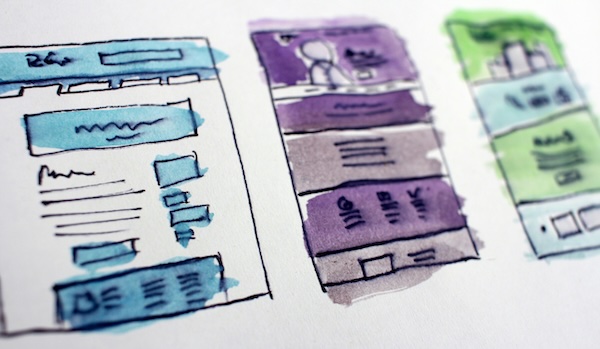
Choose from professional templates and customise your CV's appearance.
Available Templates:
Choose from four professional templates designed for different styles and industries. Professional Blue offers a classic business layout with blue accents, perfect for corporate roles. Minimal provides a clean, simple design with subtle dividers for a modern, understated look.
The Classic template features a traditional formal layout ideal for conservative industries, while Modern uses a contemporary two-column design that maximises space and visual appeal.
Customisation Options:
Personalise your CV's appearance by customising header colours with gradient options or choosing from predefined colour schemes. This allows you to match your CV to your personal brand or industry standards.
You have full control over which sections to include in your CV, and you can manage photo and QR code visibility independently. This flexibility lets you tailor your CV for different applications while maintaining a consistent professional look.
PDF Export

Generate professional PDF versions of your CV for printing or emailing.
PDF Features:
When generating your PDF, you can choose which sections to include, giving you complete control over what employers see. This is perfect for tailoring your CV to specific job applications. You can also optionally include your profile photo if you want a more personal touch.
One of our standout features is the QR code option. When included, the QR code links directly to your personal CV page. Employers can simply scan it with their phone to instantly view your live, up-to-date CV online—perfect for networking events or printed CVs.
Your PDF will match your selected template design exactly, ensuring consistency between your online and printed CV. All PDFs are optimised for A4 paper size and print-ready, so you can confidently share them via email or print them for interviews.
How to Generate PDF:
- Go to Preview & PDF page
- Select your preferred template
- Choose which sections to include
- Toggle photo and QR code options
- Click "Generate PDF"
- Download your professional CV PDF
Tips & Best Practices
Keep It Updated
Your online CV updates in real-time. Make changes anytime and they're instantly visible.
Be Consistent
Use consistent formatting, dates, and descriptions throughout your CV for a professional look.
Tailor for Applications
You can temporarily hide sections or adjust content for specific job applications, then change it back.
Use the QR Code
Include a QR code in your PDF so employers can quickly scan it with their phone to access your personal CV page online. The QR code links directly to your CV at https://simple-cv-builder.com/cv/@yourusername.